
The short answer
Identify your exact member profile and the name field you intend to change. Edit first/last or ordinary additional-name text through the introduction controls actually offered, choose the additional-name audience separately and reopen the same fields after saving. Last-name visibility is a different setting; a verified ID name is a separate read-only object whose removal also removes identity verification. A submitted save or missing control does not prove the intended result.
What you’ll take away
- A written name, pronunciation recording, profile URL and Company Page name are separate objects.
- Last-initial visibility does not hide full names from connections or prevent full-name search.
- Ordinary additional-name audiences do not control a separately displayed ID name.
Identify the member and the name object first
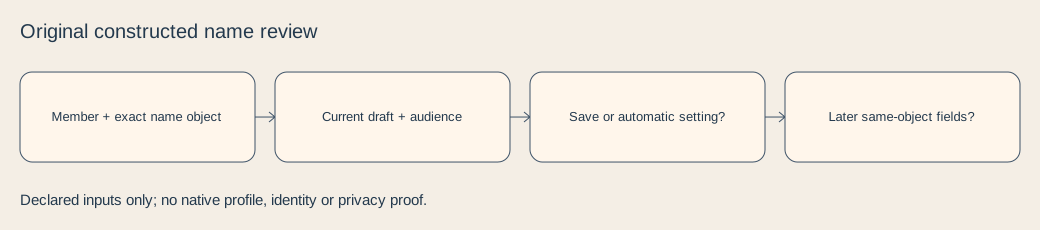
Start with the member profile you own and the exact correction you need: first/last text, an ordinary former name or nickname, or a last-name display setting. A résumé, downloaded recap and old search snippet are separate copies. A familiar displayed name alone is not enough to identify the right member.
Name pronunciation is an audio task; a custom profile URL is an address task; a Company Page name belongs to an organization. A secondary profile language is part of the same member profile but still needs its own field review. Do not change one of these objects just because it also contains a name.
| Intended object | What to verify | What it does not establish |
|---|---|---|
| First/last text | Exact saved text on the intended member | A changed URL, old export or every language |
| Ordinary additional name | Text plus the selected offered audience | A read-only ID name or verification |
| Last-name visibility | Display choice and public-profile prerequisite | Anonymity, full-name search erasure or hidden names from connections |
| ID name | Separate read-only display and verification dependency | An ordinary editable former-name field |
| Page, pronunciation or URL | The separate object and its own workflow | Completion of this member-name change |
Keep professional-name scope separate from verification
The English naming help permits real or preferred professional first, middle and last names, plus preferred pronouns. It excludes fake identities, organization names and promotional substitutions that do not reflect that name. The German help uses civil or stage-name wording. Do not turn this into a requirement that every profile name must match an identity document, or permission to register a business as a personal member.
A separately linked suffix task is older but still available: it says there is no separate suffix field and describes a last-name credential workaround, alongside Education or certification entries. Preserve that specific advice rather than inventing a new suffix control or a blanket ban. This guide neither establishes an earned credential nor tests that a particular string will be accepted by the native form.
Edit the intended text and then read it back
The desktop name task opens your profile and the introduction edit control, where first and last name can be changed and saved. On mobile it reaches the profile through the profile picture/name and the same kind of edit control. Use the actual field labels offered in the intended account; the related introduction help lists other editable fields but does not ask you to change them all.
Check the current draft before an authorized save, then reopen that same member and inspect the exact fields. A submitted Save is an attempted operation, not evidence that the desired text persisted. Keep an uncertain operation unresolved instead of repeating it to manufacture a receipt.
The introduction help says the network is not notified about introduction edits. That specific rule does not make the changed profile private, recall earlier messages or prove what any recipient actually received. An updated field can still be visible when the profile is viewed.
- Confirm the member and whether the task is text or a visibility setting.
- Compare the intended wording with the current authorized source.
- Use the offered introduction field and choose any relevant audience deliberately.
- Save only the intended text, then reopen the same member and fields.
- Record the observed result and leave other languages, snippets and copies separately unresolved.
Choose the ordinary additional-name audience deliberately
The ordinary Additional name task covers a former name, maiden name or nickname in the introduction. It offers four audiences: only yourself, your connections, your network or all LinkedIn members. Select the intended offered choice rather than assuming a default. This audience belongs to that additional field; it does not replace the profile’s other visibility controls.
The mobile task specifically says that Done or Enter on the keyboard makes the visibility field appear. If the control is not yet shown, keep the choice unknown and inspect the documented offered route. Absence of a selector is not a private audience or evidence of a saved change.
LinkedIn says the ordinary additional-name field is not shown on the public profile. Keep that field-specific statement; it does not prove that old snippets, another name field or distributed copies have disappeared. Avoid collecting an unnecessary identity document to complete a simple text review.
Read last-initial visibility with its prerequisite
The last-name help separates text editing from a visibility selection. For nonconnections, its initial-only option is documented after turning the public profile off. The visibility route saves the selected display automatically; it is not the text-edit Save flow. Check which task you are actually performing before treating one result as completion of the other.
Connections continue to see full first and last names, and the same help says someone can still find the member using the full name. An initial-only selection is therefore not an anonymity, search-removal or all-context privacy guarantee. Record the supplied or observed setting and viewing context without inventing universal exposure.
Hold the separate read-only ID-name branch
LinkedIn’s optional identity-verification help describes consenting to show an ID name alongside the profile name. That display is read-only, can also appear on a secondary-language profile and is visible to logged-in members; the source excludes public profiles, logged-out visitors and public search results. These are the documented scopes of this separate object, not the ordinary additional-name audience selector.
Deleting this ID name also removes identity verification; deleting identity verification also removes that ID name. Do not treat a cosmetic additional-name request as authority to remove either. If the field you found is read-only or carries that dependency, stop this ordinary-name edit and resolve the intended object first. No identity document, verification process or account operation is required to use this teaching guide.
Execute the local examples and keep a bounded record
The packet has ten actual fictional CSV plans and ten independent supplied observations. N1 supplies Save as submitted without readback. N2 supplies another member. N3 has the wrong additional-name audience; N4 leaves the mobile control unknown. N5 retains public-profile-on while requesting a last initial. N6 supplies only the matching last-initial selection, not universal privacy.
N7 substitutes the read-only ID-name object. N8 proposes an organization name. N9 supplies current text while an older external snippet remains; N10 leaves another language unobserved. These are teaching inputs and our planning holds, not real people, observed native rejections or platform enforcement tests.
Four actual bilingual text cards retain old r1 Mira Vogel and current r2 Mira Adler. They are fictional local drafts, not a saved LinkedIn profile. Selecting the right local file does not establish an account result. Comparing the known fields helps expose stale or wrong input; it does not certify arbitrary names, meaning, identity or privacy.
The download contains 21 files: source declarations, CSV plans, supplied observations, checker, deterministic builder, four text cards, localized diagrams, complete decisions and private blank records. With existing Python 3, extract the ZIP and run python3 check.py. Use python3 build.py --out /path/to/empty-folder to reproduce all 21 files, including the ZIP, byte for byte in the recorded runtime without installation or network. Keep any real record minimal and private; no profile, identity, search, recipient or account action occurred for this exercise.
Sources & product references
Product details reflect the publication date. External features and interfaces may change.
- LinkedIn: name editing and separate last-name visibility (English)
- LinkedIn: name editing and separate last-name visibility (Deutsch)
- LinkedIn: ordinary additional name and audience (English)
- LinkedIn: ordinary additional name and audience (Deutsch)
- LinkedIn: permitted profile-name scope (English)
- LinkedIn: permitted profile-name scope (Deutsch)
- LinkedIn: introduction fields and network updates (English)
- LinkedIn: introduction fields and network updates (Deutsch)
- LinkedIn: separate suffix guidance (English)
- LinkedIn: separate suffix guidance (Deutsch)
- LinkedIn: optional read-only ID name and verification dependency (English)
- LinkedIn: optional read-only ID name and verification dependency (Deutsch)


