The short answer
Treat the portrait and cover as one profile presentation with different jobs: recognition and context. Prepare suitable files, inspect the actual crop, choose visibility deliberately and reopen the saved profile. A successful upload establishes neither readability at another size nor more profile views or customers.
What you’ll take away
- Keep the portrait and wide cover as different source files.
- Inspect the saved crop and visibility in the relevant viewing context.
- Keep a permitted original before replacing an image you may need again.
Give each image a useful job
A portrait should let someone recognize the person whose work the profile describes. A cover can add professional context, such as your own work setting or a simple visual connected to the project you discuss. Decide what each contributes before adding decorative text, badges or a collage of achievements.
LinkedIn requires the profile image to reflect your likeness and lists unsuitable image-only substitutes, including company logos and other people’s likenesses. Its cover remains subject to platform policies too. Use an image you are entitled to publish; a downloaded photograph or an AI-generated stranger is not an appropriate shortcut to personal identity. Keep essential professional information in profile text so understanding the work does not depend on reading an image.
Prepare files for the correct surface
LinkedIn’s upload help specifies JPG or PNG and an 8 MB maximum; GIF is unsupported. It lists portrait dimensions from 400 × 400 through 7680 × 4320 pixels. Cover guidance recommends 1584 × 396 pixels and says less than 8 MB. Use a file comfortably below the limit, inspect its actual format and dimensions, and retain an authorized original. Renaming .gif to .png does not convert the file.
A 1584 × 396 canvas is 4:1. That describes the supplied file, not a guaranteed visible rectangle on every screen. A face that fits a square source can still lose useful detail in the displayed portrait crop. Avoid building a layout around an invented universal safe zone. Place any essential explanation in ordinary profile text and inspect the rendered result at the sizes you actually use.
| Surface | Illustrative prepared file | Check after upload |
|---|---|---|
| Portrait | 1200 × 1200 PNG, 220 KB | Recognizable crop; intended visibility |
| Cover | 1584 × 396 PNG, 640 KB | Actual framing and any text overlap |
| Unsuitable input | 9 MB animated GIF | Create a supported smaller still image first |
These file descriptions are constructed examples, not uploaded or tested files.
Use the actual image editor and complete its save step
On desktop, open your own profile and select its portrait, or the camera control when no portrait exists. The photo editor supports upload/replacement and crop adjustments; finish with its save action. On the mobile app, open your profile and its photo’s view/edit control. Confirm which image is selected before replacing or deleting anything.
For the cover, use its own camera/edit control. Desktop guidance finishes with Apply and describes automatic upload; the mobile path uses Save. Follow the controls actually shown for that surface. A cover editor is not the portrait editor, and an open preview is not the saved profile. Preserve your original locally before replacement: LinkedIn warns that it cannot retrieve the old portrait after deletion or a new upload.
- Record which surface and authorized source file you intend to change.
- Open that surface’s editor and inspect the chosen image.
- Adjust the crop while preserving the recognizable subject or useful context.
- Complete the displayed Apply or Save action.
- Reopen the profile and inspect the actual saved image rather than the editor alone.
Inspect image visibility alongside the public profile
The portrait’s visibility control offers connection, network, member and broader-access choices. Public-profile settings form another relevant context. LinkedIn says a visibility change made from the profile photo updates the corresponding public setting, and a disabled public profile prevents choosing Public there. Inspect the saved controls together instead of assuming two completely independent switches.
Choose the intended audience before making a change. A signed-in owner view cannot demonstrate what every visitor can see. Record the context you actually inspected and leave unavailable contexts unresolved; do not widen exposure just to make a screenshot easier. These settings do not establish deletion of copies already held elsewhere. The source’s promotional view/request figures are not evidence that this particular image will improve your results.
Resolve three complete image decisions
P1 — Constructed portrait: an authorized 1200 × 1200 PNG fits the file requirements, but the preview cuts into the face. Keep the original, adjust the crop or choose a source with more surrounding space, then inspect the saved portrait. The decision is about recognition in that observed view; no click or enquiry effect is measured.
P2 — Constructed cover: a 1584 × 396 image includes a sentence along the lower edge. A smaller observed layout overlaps part of that sentence with the portrait. Move the essential statement into profile text and simplify the cover, then recheck. Do not label an unobserved fixed pixel region safe for every device.
P3 — Constructed rejected input: a 9 MB GIF is offered as the cover source. Stop before upload; export an authorized still image in JPG or PNG below the source’s limit and inspect the output’s real dimensions and appearance. The example does not create that file or prove that an account accepted it.
Leave a useful replacement and verification record
The worksheet records surface, minimal local source reference, permission basis, actual file properties, intended audience, save result and observed viewing context. Its complete cases show what to change and what remains unmeasured. Keep completed notes and face images private; the blank worksheet does not need a name, account password or copied profile to be useful.
Close with a precise state: prepared, editor preview checked, saved image observed, or unresolved. If the upload fails, inspect the file and message before another attempt. Sources were read on 1 November 2026; these are documented paths and original constructed cases. No account image was changed, native product demonstration performed or readership/customer benefit measured for this guide.
Check the actual orientation and nonvisual information
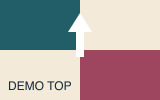
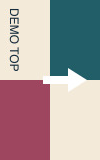
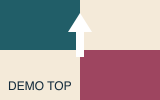
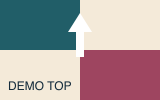
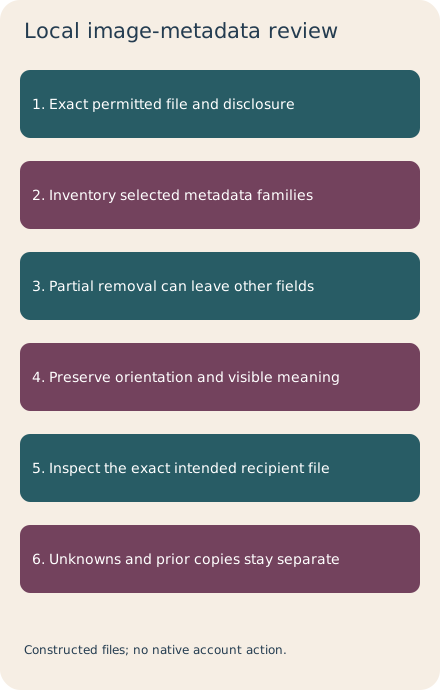
Before replacing a profile image, inspect the final source file as well as its visible crop. The local teaching JPEG stores 160 × 100 pixels with Exif Orientation 6; the orientation-aware decode is 100 × 160. Removing Exif without rotating the pixels changes that presentation. The separately exported oriented PNG retains the source-aware decoded pixels. These small drawings illustrate a file-handling issue; they are not portraits, suitable native-upload examples or saved profile images.
The Exif-only copy still contains XMP and a comment. Another PNG has no selected metadata but visibly says DEMO PRIVATE. Keep nonvisual fields, visible information and the original image’s permission separate. The included inventory detects selected JPEG/PNG families; it does not decode all field values, recognize faces, certify rights or approve an image for publication. Unknown containers and unavailable views remain unresolved.
The case record that receives a tagged JPEG instead of the approved oriented PNG is held. A matching supplied local copy still does not show what LinkedIn processed or what a signed-out visitor sees. Preserve the original portrait/cover distinction, actual surface requirements, chosen visibility, saved image and relevant viewing context from the earlier sections. A prepared public copy is only one step in that workflow.
Use the local examples before your separate profile readback
The package contains actual constructed image files, 17 bounded decisions, complete bilingual records and a private blank. With existing Python 3, run python3 inspect_image.py FILE for a local family inventory, or python3 check.py for the supplied cases. Rebuilding the transformations uses the exact existing Node/Sharp runtime recorded in the packet. It installs nothing and makes no network request. The inspector’s 16 MiB bound is its own local limit, not this surface’s upload policy.
Keep the reviewed file/version, permitted disclosure, actual metadata-field review, intended appearance and any observed final profile image in a private note. Relevant current PNG/Sharp sections were checked on 2 November 2026. No real face, photo, private profile, upload, replacement, visibility or recipient action occurred. The actual account’s saved result and native viewing contexts remain to be checked when you perform your intended change.
Sources & product references
Product details reflect the publication date. External features and interfaces may change.
- LinkedIn: add, edit, replace and delete a profile photo
- LinkedIn: profile-photo visibility and public-profile coupling
- LinkedIn: cover-image workflow and specifications
- LinkedIn: photo upload requirements
- LinkedIn: profile-photo and cover-image conditions
- PNG: metadata, ordering and privacy
- Sharp: orientation and metadata output
- Original constructed local image-file exercise