
The short answer
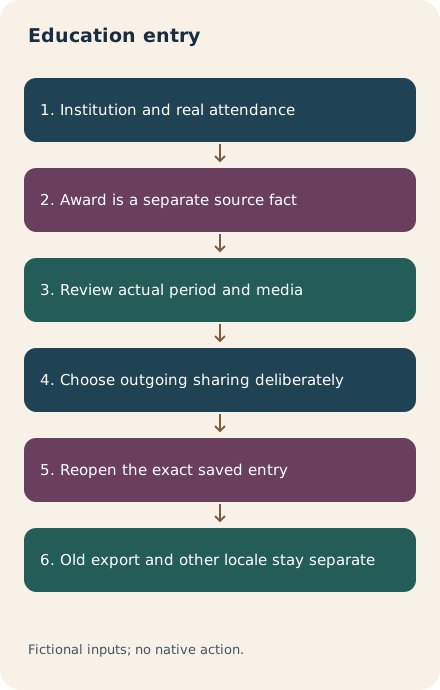
Use the Education section of the intended personal profile and describe the education you actually undertook. Check the institution, attendance period and award separately; completed modules alone do not establish a conferred degree. Choose any media and outgoing network update deliberately, save the reviewed entry and reopen that exact row. A submitted save, a notification setting and another language or exported profile are separate states.
What you’ll take away
- Attendance, completion of coursework and an awarded qualification need different support.
- Education, Courses, Licenses & certifications and Learning certificates are different objects.
- Turning off network sharing does not make a saved profile change private.
Start with the institution, attendance and award facts
Write down the intended member, actual institution and specific program before opening the form. Separate what you attended from what was awarded. An offer, enrollment, completed module, expected graduation and conferred qualification are different facts. A similarly named school is not an interchangeable selection, and an institutional association badge is not verification of a degree.
Worked example: a fictional practice ledger contains 15 units, with 12 marked complete and three pending. Its separate award note says no award was conferred. “Attended the practice program; 12 of 15 units complete” fits these supplied facts. “Graduated with a degree” does not. A later ledger with all 15 complete still cannot resolve an unknown award state. The downloadable CSV files are teaching records, not transcripts or certificates.
| What you know | What it supports | What remains separate |
|---|---|---|
| Attendance at a named institution | An accurate attendance description | Whether a qualification was awarded |
| Completed course or module records | The particular work completed | A degree, license or accreditation claim |
| An actual award record | Its exact qualification and date | Employment, endorsement or a hiring result |
Choose the right profile section and period
The current profile-section help places Education in Core and Courses, Projects and Licenses & certifications among other section choices. Use Education for the institution and education entry you intend to maintain. An ordinary LinkedIn Learning completion certificate has its own sharing workflow; adding a degree field is not a shortcut for displaying it. Nor does adding a school create an employment relationship in Experience.
Keep the period at the precision your evidence supports. If you only know a year, do not manufacture a month, a day or today’s date to fill a gap. Inspect the fields actually offered and resolve any required unknown before continuing. The dedicated education task does not establish one universal set of degree labels, field limits or ordering rules. Do not import the position-specific language synchronization rule into Education.
Add or edit the intended Education row
The Education section appears after the first education entry is added. If it is absent, the help points to Add profile sections. On desktop, use Me, View profile and the Education section’s Add control; for an existing row, use the section’s Edit control and then the Edit control beside that entry. The mobile task starts from your profile photo and profile. Follow the current account’s actual wording rather than a remembered position editor.
Review the institution and supported details together before Save. Where offered, skills and media are optional additions; they do not establish an award. Keep a short private before/after note so you can tell the intended correction from an accidental change to another row. A form submission alone is not evidence that the correct member’s entry now contains the reviewed facts.
- Match the intended member and exact Education entry.
- Compare the institution, description and period with the source facts.
- Review optional media and the outgoing network-sharing choice.
- Save only the intended change, then reopen that row and compare it again.
Check the contents and disclosure of supporting media
A familiar filename or a newer download date does not tell you what an attachment says. Inspect the actual contents and whether you may show them. Our r1 and r2 practice ledgers differ in completed units; neither is an award document. If a description was reviewed against r1, replacing its supporting file with r2 calls for another content review. A file fingerprint can reveal a changed version; it cannot certify educational truth.
The current profile-media task lists PDF, PPT/PPTX, DOC/DOCX, JPEG, PNG and GIF, with GIF shown as its first frame. It lists 100 MB, 300 pages, one million words and 120 megapixels for images, and says documents cannot be uploaded from mobile devices. The education task’s mobile Add media option does not override that restriction. Our CSV and TXT records are local worksheets, not claimed native upload formats. No exact limit boundary or native upload was tested.
Separate the saved entry from a network update
LinkedIn documents an outgoing profile-update preference and an optional sharing choice while editing education. The preference saves automatically. Education announcements may take up to 24 hours, and some edits do not generate an update even when sharing is on. Profile visitors can see saved edits regardless of the notification choice. “No network announcement seen” therefore proves neither a private entry nor a failed save.
The English help says automatically generated updates do not appear in the Posts tab. The German translation instead says they do not disappear there; we do not use that mistranslation as a retrieval guarantee. Inspect the exact entry directly. Record any generated update or delivered notification only if actually observed, and keep other language editions and old exported PDFs as separate copies requiring their own checks.
Treat deletion as a different intended result
For deletion, the education task says to edit the exact entry, choose Delete education at the bottom and confirm. That is a different goal from correcting a field. Before proceeding, decide whether removing that profile row is really intended and retain any information you still need in an appropriate private place. A deletion plan that also requires that same row to remain visible is inconsistent.
After an intended correction, reopen and read the row; after an intended deletion, inspect the relevant Education view. A supplied absence in one view is a bounded observation. It does not establish that an old PDF changed, a notification was withdrawn or an external copy disappeared. If the outcome is uncertain, inspect first instead of repeating the operation.
Use the twelve cases to check your completion claim
The local exercise separates twelve education cases, twelve Page-verification cases and six outgoing-broadcast cases. Education cases include a supported saved attendance entry, a degree claim based only on completed units, all units completed with award unknown, a namesake institution, invented date precision, a mobile document plan, an unconfirmed save, another member’s readback, a conflicting deletion plan, unconfirmed deletion, supplied absence with an old export still present, and a stale file review.
Download the complete packet or your private blank record below. With existing Python 3, extract the ZIP and run python3 check.py. Its checker reads the actual two ledgers, independent source facts, plans and supplied observations and reproduces the localized decisions. These are fictional inputs and our planning safeguards, not a native validation rule, a credential verifier or evidence of a hiring benefit. English and German help bodies were read separately on 2 November 2026; no profile, school, course, account or notification was changed.
Sources & product references
Product details reflect the publication date. External features and interfaces may change.
- LinkedIn: Education entry, profile sharing and media (a539843, en)
- LinkedIn: Education entry, profile sharing and media (a539843, de)
- LinkedIn: Education entry, profile sharing and media (a540837, en)
- LinkedIn: Education entry, profile sharing and media (a540837, de)
- LinkedIn: Education entry, profile sharing and media (a529062, en)
- LinkedIn: Education entry, profile sharing and media (a529062, de)
- LinkedIn: Education entry, profile sharing and media (a1516731, en)
- LinkedIn: Education entry, profile sharing and media (a1516731, de)
- Original constructed education, Page and broadcast records


